Looking for a free PDF audio reader to read a PDF aloud while you commute, revise, or give your eyes a break? A PDF text to speech reader can speak the words on the page and, in some tools, highlight them as it goes. The best option depends on a basic detail people often miss: does your PDF contain real, selectable text, or is it just a scan?
This guide compares five practical routes: VibeReader, Speechify, NaturalReader, Adobe Acrobat Reader, and Microsoft Edge. VibeReader is first for readers who want synchronized word highlighting in Chrome. That is a focused fit, not a claim that one tool is best for every PDF or every reader. If you are also comparing a read aloud Chrome extension for web pages and Google Docs, see our companion guide.
Quick answer: which PDF audio reader should you try?
| Tool | Useful starting point | Good fit when… |
|---|---|---|
| VibeReader | Chrome extension for supported PDFs | You want word-synced highlighting while listening. |
| Speechify | Web and mobile reading workflow | You want a broader cross-device reading service; check current OCR and plan details. |
| NaturalReader | Document and app ecosystem | You switch between PDFs and other document types. |
| Adobe Acrobat Reader | Built-in Read Out Loud | Your PDF is already open in Acrobat and system voices work for you. |
| Microsoft Edge | Browser PDF reading features | You want to try a built-in option before installing an extension. |
Feature descriptions are based on each product’s own help page or listing. They are not a lab benchmark; verify current availability for your device, language, and PDF.
First, check whether your PDF has text or only page images
Open the PDF and try to drag your cursor across a sentence. If individual words highlight, the file probably contains a text layer and a text-to-speech tool can usually read that layer. If nothing can be selected, the document may be a scanned or image-only PDF. A standard PDF reader cannot speak letters it cannot extract. This quick check works whether you use a desktop app or a PDF reader online.
Scanned pages need optical character recognition (OCR) first. OCR turns the letters in a page image into machine-readable text. Accuracy varies with scan quality, handwriting, tables, multi-column layouts, and the language used. If precision matters, compare the recognized text against the page before relying on the narration.
Five ways to listen to a PDF
Before choosing, decide where the PDF lives. A browser extension is convenient when the document is already open in Chrome. A desktop reader may be simpler for files you keep locally. A web or mobile service can suit people who move between devices, but check how it handles uploads, OCR, and saved documents.
VibeReader — listen while the text stays in view
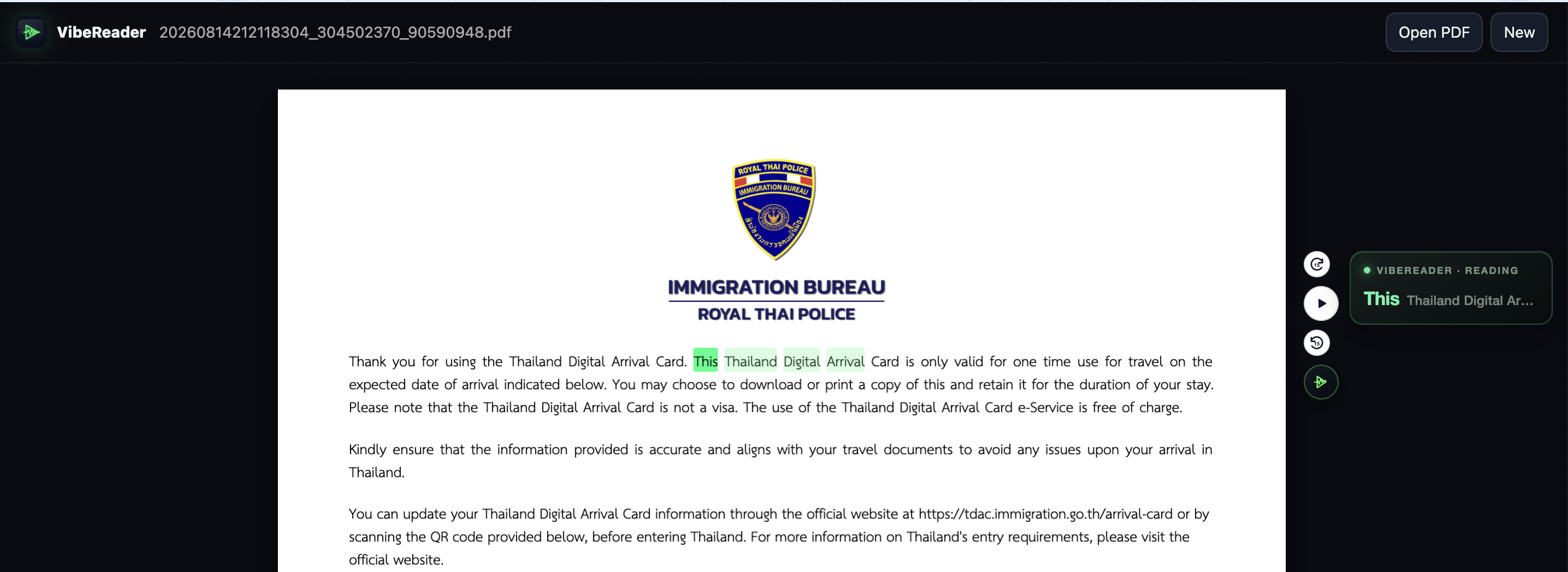
VibeReader is a PDF text-to-speech Chrome extension built for reading with the words still in view. On supported PDFs, playback moves through the document with synchronized word highlighting: the current word is clear, nearby words preview what is coming, and the surrounding text preserves sentence context. That makes it easier to keep your place in a long report instead of listening to a detached audio stream.
You can use VibeReader to read a PDF aloud in Chrome, then follow along visually as the narration progresses. Free standard voices are available, with premium AI voices for listeners who want more voice choices. The same reading approach also works with supported web pages and Google Docs, so it can fit a browser-based study or research routine.
For a text-based PDF that opens in a supported Chrome workflow, VibeReader lets you listen to a PDF without switching to a separate audio player. It is not a PDF editor or an OCR scanner: if the file is only page images, first confirm the text is selectable or use an OCR workflow.
Feature source: VibeReader on the Chrome Web Store.
Speechify — consider it for cross-device PDF listening
Speechify’s PDF guide describes reading PDFs in its web and mobile apps, and explains an OCR route for scanned pages. Its product spans more than a single Chrome reader, so it may suit people who want a larger reading ecosystem. Plan limits, supported file flows, and OCR availability can change; check Speechify’s current documentation before choosing based on a specific feature.
NaturalReader — PDF reading across its personal platform
NaturalReader’s Chrome Web Store listing says its extension works with PDFs, web pages, Google Docs, email, and other content. Its help center explains that the PDF option in the extension redirects users to the personal web app, where they can upload a document and press play. That distinction matters if you expect every PDF to be read directly in the current browser tab.
Sources: Chrome Web Store listing and NaturalReader PDF help.
Adobe Acrobat Reader — use Read Out Loud on an open PDF
Acrobat Reader includes a Read Out Loud text-to-speech feature. Adobe says it uses voices available on the operating system and that document accessibility and reading order affect what gets spoken. Tagged PDFs provide a logical structure; for untagged files, Acrobat may infer the order, which can be imperfect in complex layouts.
To start, use View → Read Out Loud → Activate Read Out Loud, then choose whether to read the current page or the document. The exact menus can vary by version. This is a straightforward option if Acrobat is already your PDF reader and a basic system voice meets your needs.
Microsoft Edge — check PDF Read Aloud support for your language
Microsoft’s support documentation lists PDF Read Aloud among Edge Immersive Reader capabilities, but availability varies by language. Edge’s voice and speed controls make it a convenient first option when you already use the browser. Check Microsoft’s language support table for the language you need; the feature matrix is more precise than a blanket “works for every PDF” claim.
Source: Microsoft’s Edge language and feature support table.
How to choose a PDF reader with text to speech
There is no single best PDF reader with text to speech for every workflow. Use these questions to narrow the options before installing or uploading anything:
- Is the PDF text-based? Select a line. If you cannot select words, look for OCR or a text-based copy.
- Where do you read? Pick a Chrome extension for browser-first work, a desktop reader for local files, or a web/mobile app for a cross-device library.
- Can you follow the narration? Check whether the active word, sentence, or paragraph is highlighted and stays visible.
- How does it handle layout? Research papers may have columns, footnotes, page headers, citations, and tables. Test a representative page before trusting a long read.
- Which voices are included? Compare free and paid voices, language coverage, speed controls, and whether voices come from the device or a cloud service.
- What happens to your file? Review the product’s privacy information, especially if the PDF contains work, school, or personal material.
- Do you need a saved audio file? Reading aloud is live playback. A PDF to audio converter creates an exportable audio file; verify that explicit export exists before assuming a reader can do it.
If your goal is to hear the words while keeping your eyes on the page, try a short section first. If the words and audio remain in sync and the reading order makes sense, continue with the full document.
Give the PDF a voice. Keep the words in view.
Try synchronized word highlighting on supported PDFs, Google Docs, and web pages.
Add VibeReader to Chrome ↗Frequently asked questions
Can I read a PDF aloud for free?
Yes. VibeReader offers free standard voices for supported PDFs in Chrome. Adobe Acrobat Reader and Microsoft Edge also include built-in read-aloud features. Free feature availability can vary by language, device, and document type.
How do I listen to a PDF in Chrome?
Open a supported text-based PDF in Chrome, then start a PDF-compatible read-aloud extension. VibeReader reads supported PDFs with synchronized highlighting. The exact steps depend on how the PDF is opened and the extension’s current compatibility.
Can a PDF text-to-speech reader read scanned pages?
Only if OCR is available in the workflow. A scan is made of page images, so first confirm that the words can be selected. If not, use an OCR-enabled app or get a searchable version of the PDF.
Is a PDF audio reader the same as a PDF-to-audio converter?
No. A PDF audio reader speaks during playback. A converter exports an audio file you can save. Check for a specific download or export function if you need an MP3.
Which PDF reader highlights words while reading?
VibeReader’s Chrome extension is designed for synchronized word-by-word highlighting on supported PDFs. Other readers may highlight a sentence, paragraph, or selection instead; try a short sample in your actual document.
Can Google Chrome read a PDF aloud?
For a supported PDF, use a compatible read-aloud Chrome extension. VibeReader pairs playback with synchronized word highlighting. PDF handling depends on how the file is opened and whether its text is selectable.
How can I tell if a PDF needs OCR before text to speech?
Try selecting a sentence. If you can select individual words, the PDF likely has a text layer. If the page behaves like a single image, use OCR or find a searchable PDF before using a text-to-speech reader.
Can I listen to a PDF online without converting it to MP3?
Yes. A PDF audio reader can speak the document during playback without creating a separate file. If you need an MP3 download, check that the product explicitly supports audio export.
Why does a PDF read aloud in the wrong order?
Columns, tables, headers, footnotes, and missing accessibility tags can affect reading order. Test a representative page and look for a tagged or reflowed version if the narration jumps around.
Does VibeReader convert PDFs into audio files?
VibeReader provides playback for supported PDFs with synchronized highlighting. It is not presented here as an MP3 export tool; choose a product with an explicit download feature if you need a saved audio file.
Sources and review notes
Product capabilities were checked against official listings and help pages on November 14, 2026. Features, language support, and plan limits can change; follow the linked source for the latest details. This is a use-case guide, not a performance test or an endorsement from the products listed.
Published November 14, 2026 · Reviewed against linked product sources on November 14, 2026.